help
Adding to pages
Adding to pages
→ Image links & Slideshow view
→ Captions & image information
→ Tags & Smart pages
→ Custom HTML/CSS/JS
→ Contact forms
→ Embedding flash files
Image links & Slideshow view
By default, when a visitor clicks one of your images they are taken to 'slideshow view'.
Here they can see an enlarged version of the image and move through other images on that page using on-screen arrows or the arrows on their keyboard.
You can change this behavior by clicking the edit button on the image and setting the link to something else (or nothing at all).
You can also change the way your images are displayed in slideshow view by going to the slideshow view options tab in the inspector (screen icon) where you can also change the way your captions are displayed.
Captions & image information
Go into edit mode and find the image you want to edit. Place your mouse over the image and click the edit button. Now on the right you can add a caption, copyright & source. You can also specify the image's URL, change what it links to (including nothing) and give it some tags.
Tags & Smart pages
Any of your pages, images and even text boxes can be tagged. To add tags to a page open that page in edit mode and go to the tags tab. To add them to an image or text box click edit on the asset you want to tag and go to the tag tab.
Once you have some stuff tagged you can setup a smart page by either making a new page and selecting advanced settings whilst doing it or on an existing page go to the settings tab and select edit content feeds.
By telling a page to watch for tags any assets or pages with those tags will be added to that page. It is updated automatically so if you remove some tags any pages watching for those tags will remove content with those tags.
See more here.
Custom HTML/CSS/JS
(To do this you must have a premium account.) Go into edit mode and to the code editor tab (< >). Here you will find space to add custom CSS & HTML (as well as JS) either specific to the page you are on or globally.
As you add code the page view will update automatically to reflect your changes. To learn more about the code editor have a look at our Code Editor section.
Contact forms
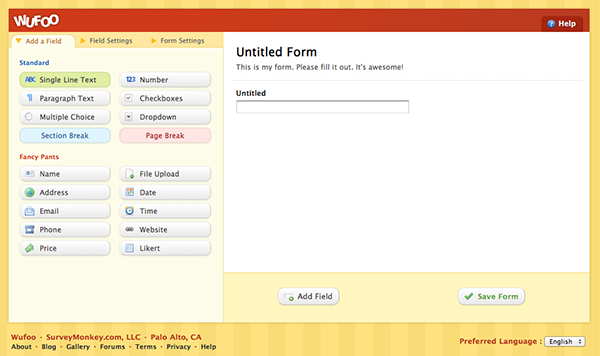
The easiest way to add a contact form on Salon.io is to use the free service Wufoo.com. Sign up for a free account and build one of their simple forms including things like name and email address then simply copy the embed code into a text box on Salon.io as you would any other embedded asset. You can then setup email notifications on Wufoo so you always know if you've been contacted.
Embedding flash files
Create a new text box and then, as with video or audio embeds, simply paste the embed code on the right into it - replacing the src with a link to a flash file hosted elsewhere on the web.
<embed type="application/x-shockwave-flash" src="http://www.xyz.com/your.swf" quality="high" allowscriptaccess="always" allowfullscreen="true" width="400" height="300">
JavaScript is turned off.
Please enable JavaScript to view this site properly.
 Salon.io