help
Text & Image Links
Text & Image Links
!! Please note that the above video is out of date and will be updated soon - We no longer use Markdown
but rather have a Rich Text Editor which allows for the simple creation of links - for more information please see below.
Text Links
There are two ways to add links to text in Salon.io.
The first and most simple way is using the Rich Text Editor.
When entering URLs that begin with http:// they will automatically become links.
You can stop them being links by simply selecting them and clicking on the 'unlink'
button in the text editor toolbar.
To specifically add a link select the text you want to become a link and then click the
'insert link' button.

Here you can specify the link edit the link text and decide if you want the link to open
in a new tab when clicked. You can also click this button to edit an existing link.

If you need more control over your links (to set targets for example) you can also
use standard HTML link tags by entering them in the code editor (accessible via the
< > button in the rich text editor toolbar).
<a href="https://Salon.io" target="_blank">Salon Homepage</a>
Salon Homepage
If you have a custom domain setup you should remember to use ambiguous links
when adding text links. See below for an example of this:
[photography](http://salon.io/jim/photography)
The above will work, however if a visitor is on Jim's custom domain (let's say
http://jim.com for example) and clicks the link they will be taken to the photography
page but on the salon.io domain.
[photography](./photography)
The above is better as whether on the custom domain or salon.io domain the link will
function correctly. If on jim.com the user will be taken to jim.com/photography and if
on Salon.io/jim the user will be taken to Salon.io/jim/photography.
Email Links
A link which automatically opens a user's email client when clicked is known as a 'mailto:' link.
Using this makes it easy for someone to send you an email without having to copy and paste
your address, for example if you click here you can send an email to us here at Salon.io!
To make a mailto link of your own just type the following as the URL when creating a link:
mailto:hello@example.com
Simply replace the 'hello@example.com' with your email address and the link text can be
anything you like!
If you would prefer to create a contact form for your users take a look at
our guide to Wufoo.com.
Image Links
By default when an image is clicked it links to slideshow view on that image.
(For more information on slideshow view see our help page here).
To alter this go into edit mode and move your cursor over the image whose link
you want to change:
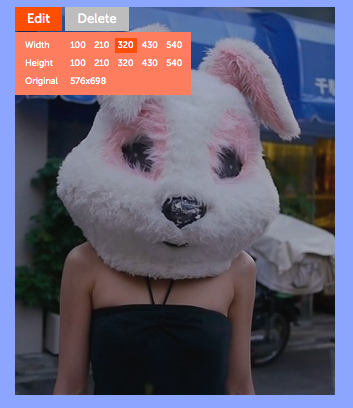
Click on 'Edit' and then in the menu on the right select the 'settings' tab:
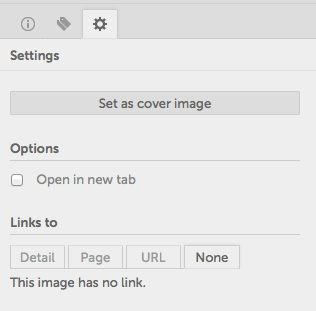
From here you have 4 options for what the image links to.
- Detail - This is the default and links to slideshow view starting on the selected image.
- Page - This gives you a list of your pages on Salon.io and allows you to pick one to link to.
- URL - This gives you a textbox in which you can enter a web address for the image to link to.
- None - This stops the image linking to anything.
There is also the 'Open in new tab' checkbox. This allows you to decide whether you want the
link to open in the current tab (unchecked) or in a new tab (checked).
JavaScript is turned off.
Please enable JavaScript to view this site properly.
 Salon.io